

2月21日 的 RamEater 應用程式分析

RamEater
- Derek Wilson
- Google Play 商店
- 免費版
- 工具
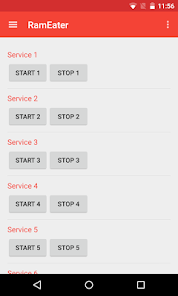
RamEater is a memory stress tool for Android phones. Its designed to stress Android phones by allocating almost all the available internal memory to force other applications to be killed and then restored. It is intended to be used by developers and testers to be able to recreate low memory scenarios so that they can develop and test applications in these scenarios.
*** NOTE ***
Please do not install this app unless you want to be able to trigger these low memory scenarios. Also note that phones will tend to run very slowly when the internal memory come under this pressure.
***************
Android restricts the memory any one process can use. RamEater can start a number of services each one in its own process to allocate enough memory to exhaust all the memory in your phone. Because the memory is allocated in a service Android will kill off other foreground tasks before it kills off RamEater services.
Each service adds a notification icon to show how much memory has been allocated, these notifications will disappear if the OS does kill one of the services. Each service will attempt to allocate the maximum amount of memory allowed, but see notes below for Android 2.
To use
1) Download and install RamEater
2) Run RamEater
3) Start the first service
4) Keep starting additional services until you notice that other RamEater services are being killed off (as the phone tries to free up memory for the additional demand)
5) When you are in a state when starting a new service will kill off a previously started service then your phones memory is fully allocated.
6) Run the application you want to test. Perform actions until you are at the activity you want to tesr.
7) Switch back to RamEater and start some more services until the memory is fully allocated again.
8) Switch back to the application you are trying to test and you will notice that the application process will have been killed off by the OS and when you switch to it it will be restored from saved state.
9) You can check how much memory has been allocated by going to Settings -> Apps -> Running and you will see how much memory has been allocated to each RamEater process and also how much memory is free on the phone.
After use
After you have finished using RamEater you should shut it down or you phone will continue to work very slowly as all memory has been allocated. To do this
1) Switch to RamEater.
2) Manually stop all the services, or select Stop All from the menu
3) Exit RamEater
4) Check that all the memory has been freed by going to Settings -> Apps -> Running
Android 2
In Android versions earlier than Android 3 it is not possible to automatically detect the maximum amount of memory to allocate, you will need to select the amount of memory each service will allocate in the settings.
There is no menu icon on the action bar - you need to use the menu button on the handset.
RamEater 使用排名
基於 Similarweb 的算法,根據過去 28 天的安裝數和活躍用戶數進行計算。
所有類別 在
美國--
工具 在
美國--













 RamEater VS.
 2月 21, 2026