


8月25日 的 Quick Bible 應用程式分析

Quick Bible
- Daniel Goodwyn
- Apple App Store
- 免費版
- 書籍
Bible Navigation
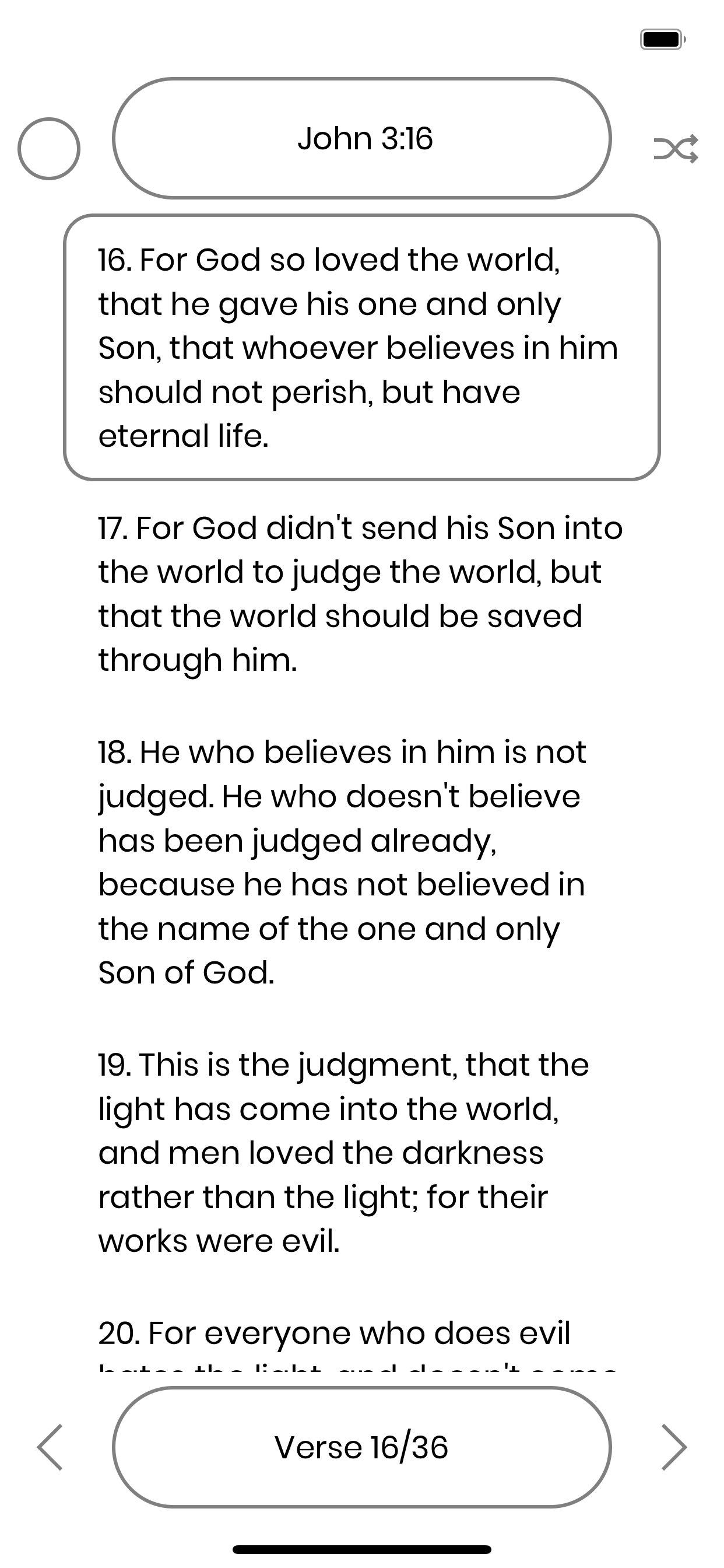
The Bible is composed of Books that contain Chapters that contain Verses. Scripture References are written as Book Chapter:Verse (Example: John 3:16). The purpose of the Quick Bible app is to help the user Navigate quickly to a passage of the Bible based on a known Scripture Reference. In this app, one chapter is shown at a time. The Current Verse will have a border around it. Note that the Current Verse is not the same as a Selected Verse.
• Top Navigation Bar
- • Browse the Book List by Tapping / Clicking once quickly on the Top Navigation Bar.
- • Navigate precisely and immediately using "SuperScroll" technology.
- - • Drag across the screen starting from inside the Top Navigation Bar.
- - • ↕ Drag Up and Down across the screen to Choose the Book. (Upon pausing for 1 second over a Book, the active Book Navigation will "Freeze" until choice is made.)
- - • ↔ Drag Left and Right across the screen to Choose the Chapter.
- - • Release to Navigate to the Chosen Passage.
• Bottom Navigation Bar
- • Change the Bottom Navigation Mode by Tapping / Clicking the Bottom Navigation Bar.
- - • The Bottom Navigation Mode can be Book, Chapter, or Verse.
- - - • Tap the Left half of the Bottom Navigation Bar to Choose the Previous Bottom Navigation Mode.
- - - - • If the Mode is Book, it will change to Chapter.
- - - - • If the Mode is Chapter, it will change to Verse.
- - - - • If the Mode is Verse, it will change to Book.
- - - • Tap the Right half of the Bottom Navigation Bar to Choose the Next Bottom Navigation Mode.
- - - - • If the Mode is Book, it will change to Verse.
- - - - • If the Mode is Chapter, it will change to Book.
- - - - • If the Mode is Verse, it will change to Chapter.
- • ↔ Drag Left and Right across the screen starting from inside the Bottom Navigation Bar to Choose the Book / Chapter / Verse (according to the Bottom Navigation Mode).
- • Tap / Click the Left Button to Navigate to the Previous Book / Chapter / Verse (according to the Bottom Navigation Mode).
- • Tap / Click the Right Button to Navigate to the Next Book / Chapter / Verse (according to the Bottom Navigation Mode).
• Left and Right Side Navigation Areas
- • Tap / Click the empty spaces on each side respectively to Navigate to the Previous and Next Chapter.
- • Long Press the empty spaces on each side respectively to Navigate to the Previous and Next Book.
• Beginning and End Scroll Navigation Method
- • Scroll Up above the Current Chapter's First Verse to Navigate to the Previous Chapter.
- • Scroll Down below the Current Chapter's Last Verse to Navigate to the Next Chapter.
Dark / Light Mode
• From the Profile Page
- • Tap / Click the Day / Night Button to swap black and white throughout the app.
• From the Bible Page
- • Tap / Click the Sun / Moon Button to swap black and white throughout the app.
Random Verse
• Tap / Click the Shuffle Button, or shake the device to Navigate to a Random Verse.
Selecting Verses
• Tap / Click to Select or Deselect a Verse. The interface indidcates Selected Verse(s). Highlight or Copy the Selected Verse(s), using the Menu Options.
Menu Options
To access the Menu, Long Press in the middle area (where the Verses are). Release to Choose a Menu Option.
• Profile
• Settings
• Versions
• View History
• View Highlights
• Cross References
• Play Audio
• Highlight Selection
• Copy
For more information, review QuickBible.app/instructions
商店排名
商店排名基於Google和Apple設定的多個參數。
所有類別 在
美國--
書籍 在
美國--




 Quick Bible VS.
 8月 25, 2026