

10月8日的Shopping List / Grocery List应用程序分析

Shopping List / Grocery List
- sascha maihoefer
- Apple 应用商店
- 付费
- 生产力
For "design lovers"
+With Support for Apple Watch!
+Voice recognition for adding positions to your list. (iOS10+)
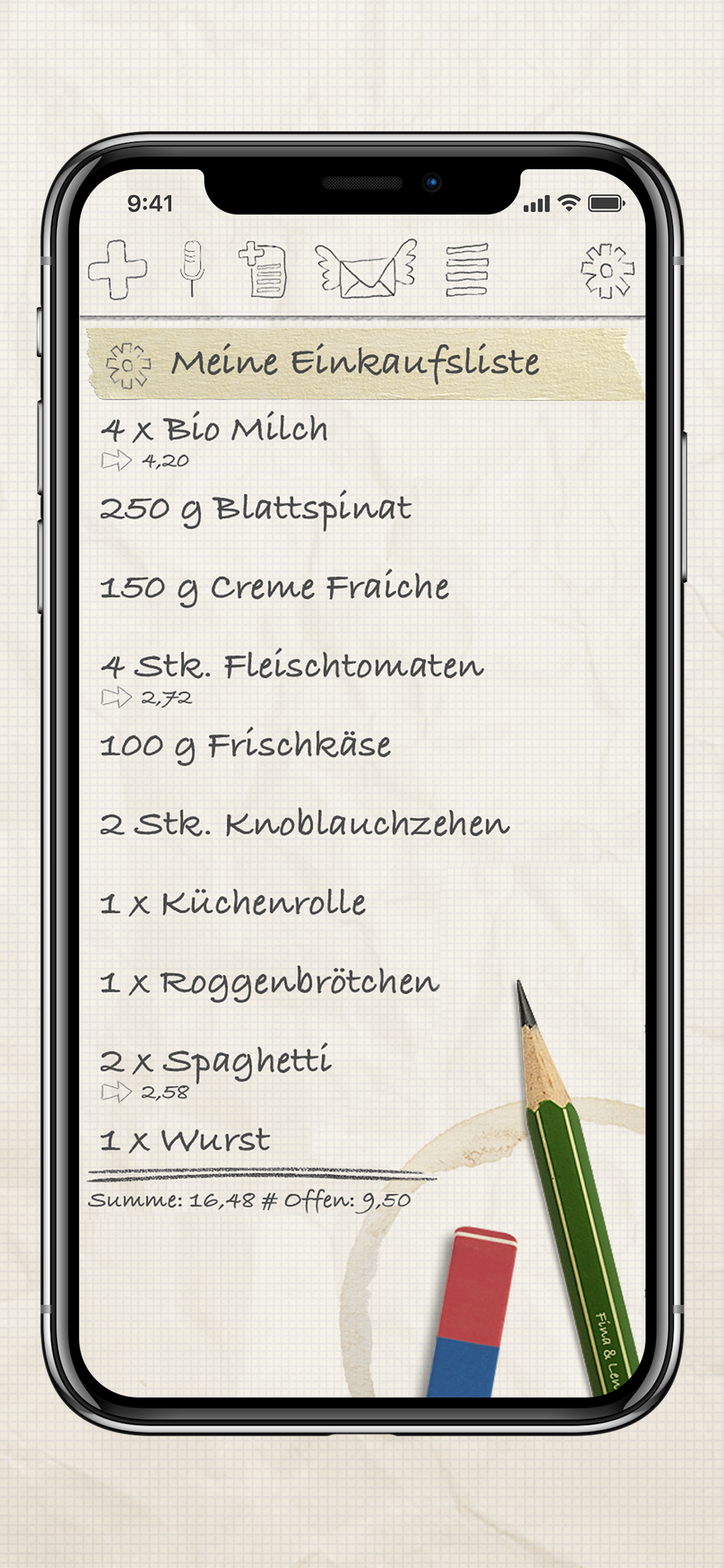
Add products from the intern asset (hundreds of articles in 17 categories), arrange them by the sections of your supermarket, and you'll be prepared for your shopping.
Read the instructions how to use this app.
Add position:
Tap on the „Plus“-Symbol (top-left on screen) or the „Pencil“. There you are able to enter the name, quantity, unit and price of the new position.
Add positions from the intern asset (hundreds of articles in 17 categories):
Tap on the „Plus“-Symbol (top-left on screen) or the „Pencil“. After that, choose between the symbols on top: „Categories“, „Occurrence“,„Last entered“, „Alphabet“ or search by tap on the magnifier.
Edit and delete positions, and mark as „done“/„todo“:
- Edit / delete: Press a position for one second or swipe left or right on a position.
- done (striked through): Tap on a position.
- todo (not striked through): Tap again on that position.
- "Shake" -> delete or reset completed positions
Tap on the „rubber“/“eraser“ to erase or copy multiple positions. Sort positions by holding down on one of the red icons and move it to where you want.
Sort/Arrange, delete and copy positions:
- Tap on the fourth symbol from left in top-menu or on the rubber/eraser, to sort/rearrange, delete or copy positions.
Add lists - use them as categories/sections:
- Tap on the second symbol from left, to add a new list. Tip: Add some lists and turn on the switch „show all“, to use your lists as categories/sections. Tap on „Sort“ to arrange your lists.
Switch, edit or sort list or show lists as categories/sections:
- switch/change: Tap on the stripe.
- edit: swipe/wipe left or right over the stripe.
- sort/rearrange: Tap on the stripe, and press the „Sort“-Button.
- show as categories/sections: switch on „show all“.
Print list, or send by E-Mail, SMS/iMessage or Bluetooth:
- E-Mail, Whatsapp or SMS/iMessage and so on: Tap on the "mailer"-Symbol and then press the desired button.
- Print: Tap on "Print" and follow the instructions. A Printer with AirPrint-Support is required.
Synchronizing with iCloud:
- Tap on the "Gear wheels"-Symbol (top-right on screen) and then on the „Cloud“-Symbol. Set the switch to on.
Change Background-Design:
- Tap on the „Gear wheels“-Symbol (top-right on screen) and then on the „five-rings“-Symbol. Choose one of the given Backgrounds and press the back-button.
By the way: Rotate your iPhone, iPad or iPod touch to the right or left and discover additional features.
*Informations for use of DropBox*
-You can link your Dropbox-Account to the App to import/export your shopping-lists. We are not saving any of your account-informations. For Account-Informations and more visit www.dropbox.com.
商店排名
商店排名基于 Google 和 Apple 设置的多个参数。
所有品类在
美国--
生产力在
美国--


 Shopping List / Grocery List VS.
 十月 8, 2026